
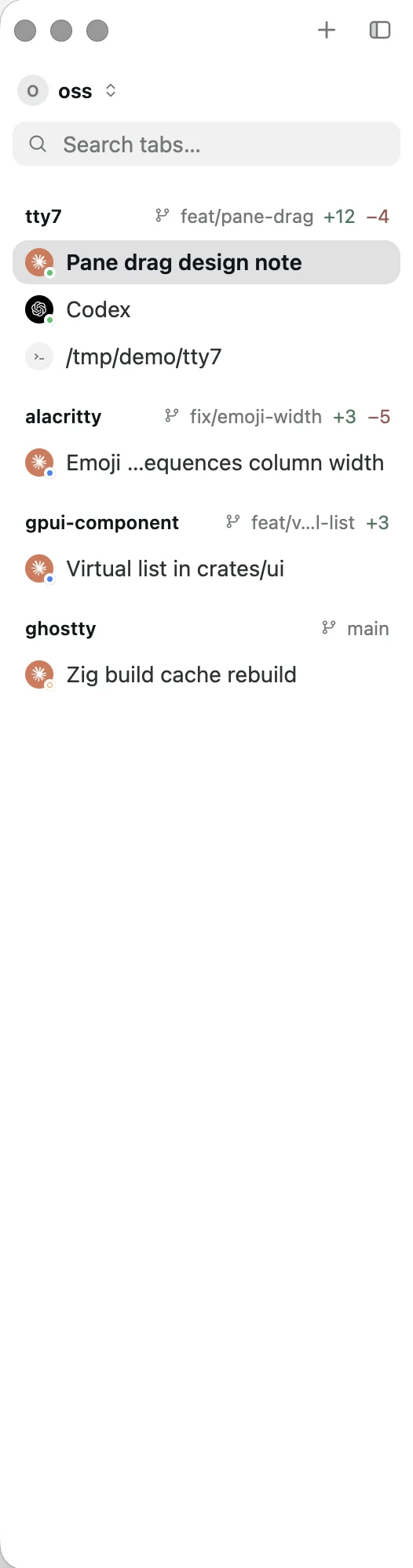
Tabs grouped by repository, with agent avatars, status dots, branch, and +N −M
Groups
The sidebar groups tabs by repository automatically. Pin what you want to keep. Auto groups sit below the pinned ones. Every tab you have not pinned is filed under the git repository its working directory is in — a linked worktree under the repository it belongs to, a submodule under itself — and an SSH tab under the host it is connected to, so/home/ubuntu on two machines is two
groups.
Everything else collects in a trailing Ungrouped section. An auto group
follows the tab’s working directory, not its history: cd into another
repository and the row moves; switching branches never does. When its last tab
leaves, the group is gone.
Pinned groups sit at the top, each marked ◆ beside its name, in the order
you put them, and stay until you delete them — an empty one keeps its place
with a + New Tab row.
A tab in a pinned group never leaves it on its own. There are two kinds:
- A folder group keeps a directory. A tab whose working directory enters
the folder joins it — a tab opened there, a
cdinto it, or a worktree of the repository the folder is. When folders nest, the deepest one wins, so pinning a monorepo and one package in it files the package’s tabs under the package. A tab you drag out while it is still inside stays out until it leaves the folder and comes back. Hover the header for the folder’s path; click its ◆ to unpin it, and its tabs go back to auto groups. - A label group is just a name, for tabs that belong together for a reason no directory shows. Tabs go in and out of it by hand.
Right-click a pinned group’s header to rename it, point it at a folder (Set
Folder…, or Use Current Tab’s Folder), clear its folder, open a tab in it,
or delete it. Deleting a group closes nothing: its tabs go back to auto
grouping. An auto group has no rename — pin it first. The + on a header
opens a tab in that group’s folder (a label group’s opens where ⌘ T
would), and ⌘ T itself joins the group of the tab you are in.
Groups, their order, and which ones are folded are kept with the workspace, so
every window onto it — and the next launch — shows the same thing.
Settings → General → Auto grouping turns auto groups off. The tabs you
have not pinned then sit in one flat list below your pinned groups, which show
either way.
What a row tells you
Who is running there
A brand avatar when a coding agent is in the tab, plus a status dot —
blue for working, amber for needs-your-input, green for done.
Where it is
The pane’s git branch, refreshed on
cd and whenever a command finishes.What changed
The working-tree diff as
+N −M. Click the counts to open the
diff overlay.Whether you have looked
An unread marker on tabs where a coding agent finished its turn while you
were elsewhere. Agent tabs also carry Mark as Unread in the right-click
menu, once there is a finished turn to mark.
Rearranging
Drag a row to reorder it within its group, or drag a group header to move the group — pinned groups among pinned groups, auto groups among auto groups. Drag a row onto a pinned group to put it there, or anywhere below the pinned groups to hand it back to auto grouping. A row cannot be dragged into an auto group: its membership comes from the working directory, socd is what moves it.
Drag a row out over the panes instead and it stops being a session of its own:
it lands as a pane of the tab on screen, wherever the highlight says. Dragging a
pane the other way — by its grip, onto the sidebar — gives it a row of its own,
between whichever two the caret lands between. See
making one tab a pane of another.
Naming
Almost no tab has a name of its own, so the sidebar falls back:- a name you set (right-click → Rename Tab…)
- the title the shell is reporting — the running command, usually
- Shell 3, numbered by position, when there is no title at all
tty7 tab ls answers the same question with more evidence, because a script has
no screen to look at. Its label falls back through the name, then the coding
agent running in the tab (“Claude Code”), then the last segment of the working
directory, then the foreground process — while name stays literal, so a script
can tell a real name from a stand-in.