
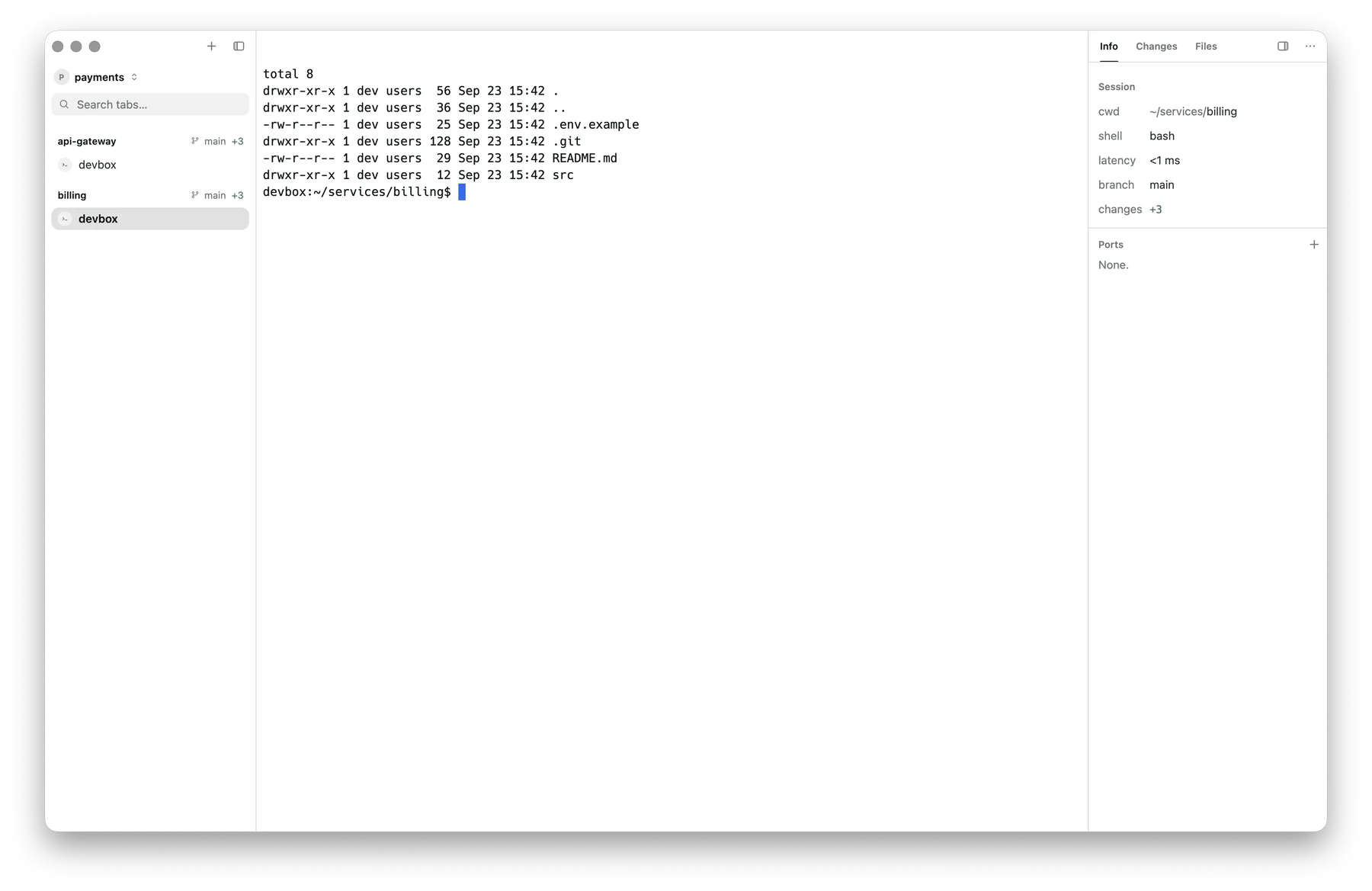
A remote workspace: repos, branches, and changes from the far machine
Connecting
1
Open the New Workspace form
⌘ ⇧ N, or the button at the bottom of the switcher
(⌘ ⇧ O). The form’s host dropdown lists This Computer, every
saved SSH profile, your
~/.ssh/config aliases and, on Windows, every WSL
distribution — type to filter when the list is long.2
Pick a machine
tty7 connects over the same SSH stack as everything else, so profiles,
keychain credentials, and jump hosts all apply. A machine that is not
connected yet connects first, then creates the workspace in its home
directory.
3
Approve the server install, once
The first connection asks:
tty7 will write its server binary to devbox so this machine can host workspaces there. Nothing else on devbox is touched, and no sudo is used.It shows the exact path, version, size, source, and SHA-256 before you agree. Later upgrades on that machine install silently.
4
Open a workspace
From then on the machine’s workspaces sit in the switcher’s flat list next
to your local ones, each row carrying the machine’s name and link state,
and a new one opens like a local one.
What gets installed
The Linux binary is linked fully static against musl, so it runs on any
distribution whatever its glibc vintage. The macOS one links only the libraries
every Mac already has. Either way nothing is installed beside it.
The binary is named after the wire dialect it speaks, so a client and a server
that disagree never quietly half-work — tty7 installs the matching one instead.
On Windows, a WSL distribution is handed the Linux server the installer already
shipped, so a WSL workspace needs no network access at all.
Reattaching
Remote workspaces are the point at which persistence pays off twice: the panes survive on the remote machine whether or not your laptop is awake, and you can reattach from a different client entirely. A strip along the top of the window says what the connection is doing — connecting, reconnecting (attempt 3), disconnected, or taken over by someone else. Reconnection is automatic; a workspace another client has claimed says so by name rather than fighting over it.Deleting a profile
Deleting an SSH profile forgets every local workspace entry that connected through it. The confirmation names the profile’s endpoint and counts the entries going with it, and the profile’s keychain credentials go too. Only the bookmarks on this computer are touched — the sessions on the remote machine keep running, and connecting to that machine again under a new profile brings its workspaces back into the switcher from the machine’s own list. An entry holding a live or in-flight connection is left alone, and parks once the link drops: it stops reconnecting on its own, keeps the name of the route that made it rather than falling back to an internal id, and its switcher row offers Remove entry. The sessions behind it are still on the machine, waiting for a new profile.Keeping the server current
Two dialogs you may meet:Update tty7's server on “devbox”?
Update tty7's server on “devbox”?
The machine is serving sessions from a build whose protocol this client
cannot speak. tty7 has already installed a matching server, but the one
already running is the one your sessions are on. Update Server replaces
it and ends every session it is hosting — including ones this window is
not showing. Cancel leaves the machine exactly as it is.
Restart tty7's server on “devbox”?
Restart tty7's server on “devbox”?
Same consequence, deliberately: every shell on that machine ends. Workspaces
and layouts are kept and come back with fresh shells.
What a remote pane cannot do
- Fork an agent session. The fork command would run against the local agent, so tty7 does not offer it.
- Move very large files through the Files panel. Drag a file onto the tree
to upload it; right-click a file → Download to copy it into this machine’s
Downloads folder (numbered, never overwritten, as in SFTP).
Both directions are capped at what one control frame can carry, about 63 MB;
past that the panel says so and points you at SFTP,
scporrsync.
From the CLI
-m matches the full link key (me@devbox:22) or just the host. It uses a link
the local server already holds — it will not dial a fresh connection, and it
says so rather than guessing. Connect from the switcher first.
CLI overview →