
Built in
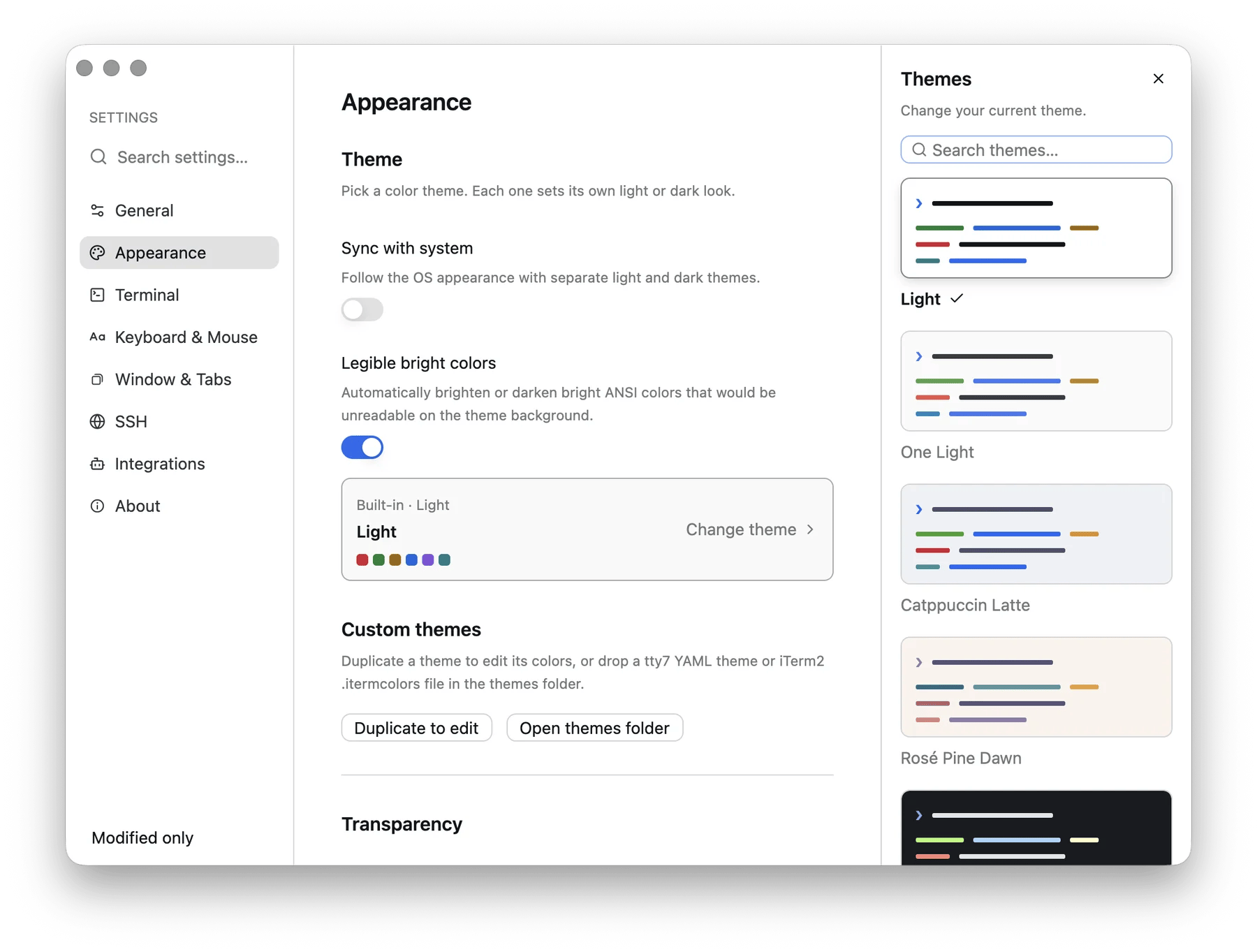
The theme picker, light themes first, then dark
Following the system
Turn on Sync with system and pick a theme for each appearance. tty7 follows the OS live — no restart, no reload.Legible bright colours
Some palettes put a bright ANSI colour so close to their own background that it disappears. Legible bright colors (on by default) brightens or darkens those just enough to be readable. Turn it off withtheme_legible_palette: false if
you want the palette exactly as authored.
Transparency
Settings → Appearance → Transparency:Writing your own
Open themes folder in Settings takes you to:
Drop a
.yaml file in and it appears in the picker. The file name is the
theme’s id; name is what is shown.
background, foreground, accent, and ansi is optional.
Gradients and images
background also takes two colours:
Editing in the app
Select a built-in theme and hit Duplicate to edit — built-ins are read-only, so the editor works on your copy. From there you get every colour, including the sixteen ANSI slots, plus the background image controls. Changes are written back to your themes folder as YAML.Importing from iTerm2
Drop an.itermcolors file into the themes folder and tty7 reads it directly —
no conversion step.
A theme file tty7 could not load is listed in Settings under Not loaded from
the themes folder, with the reason, rather than silently ignored.