
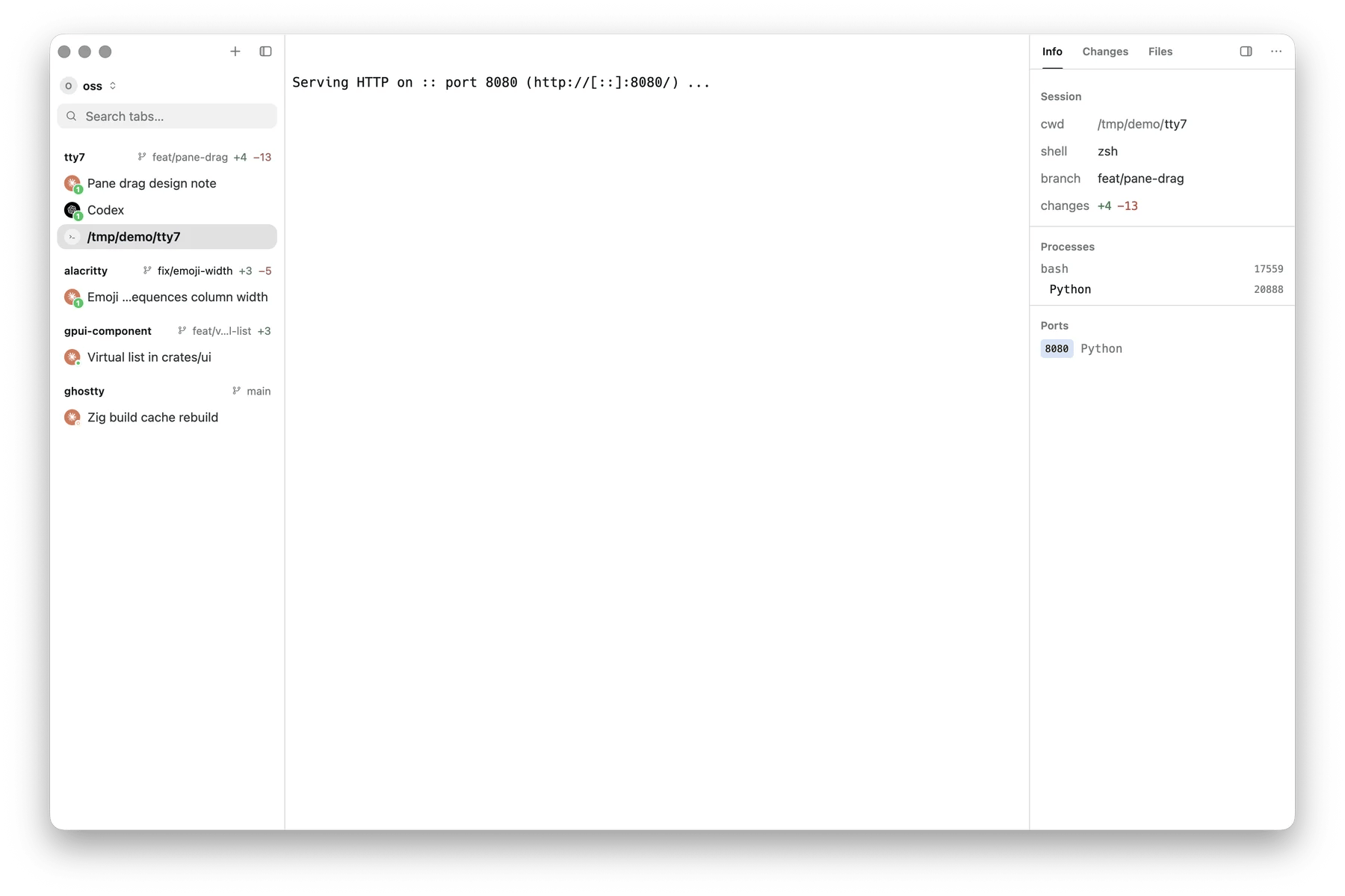
The Info tab beside a terminal: session, processes, listening ports
Info
Everything tty7 knows about the focused pane, in one column:
Hovering a row shows what it can do at the right-hand end of it: Copy on the
working directory, the SSH host and the branch, and Reveal in Finder / Open
Folder alongside it on a working directory this machine can see. The
+N −M
counts open the diff overlay, the same click the sidebar’s counts
answer to.
The ports section is the quickest answer to “what is this pane serving, and
where” — the same data tty7 procs prints. A port row copies localhost:PORT,
and on a local pane opens it in your browser.
Files
A file tree rooted at the pane’s working directory, with git status decorations on every row and a search box at the top. The search box carries a clear button while there is something in it.- Click a file to open it in the built-in editor.
- Drag a file out to Finder or Explorer to copy it there.
- Drag files in from the desktop to copy them into the folder under the cursor. A folder row takes them itself, a file row stands in for the folder holding it, and the empty space below the tree means the top of it. Folders come in whole, the executable bit survives, and a name that is already taken is asked about rather than replaced.
Search
Find in files across the project the Files tab shows: the repository root of each pane in the tab, or its working directory outside a repository. Opening the tab — from its icon, Right Panel: Search in Search Everywhere, or theShowRightPanelSearch action — puts the cursor in the search field.
Results arrive as you type, grouped by file with a count per file; click a
file’s row to fold it away. Each hit is its line with the matches highlighted,
and clicking one opens the file in the built-in editor with the cursor on that
line and column. Enter in the field searches again, for when the
files changed underneath you.
The three toggles at the end of the field:
What is searched is what the tree shows: a folder’s
.gitignore applies whether
or not it is in a repository, and dot-files and dot-directories are skipped.
Binary files and files over 1 MB are stepped past. A search stops at 2,000
matching lines, 100 per file, 20,000 files or ten seconds, whichever comes
first, and says so under the results — narrow the query to see the rest.
In a remote workspace the search runs on the remote
machine and only the hits cross the network. A remote tty7-server older than
this feature cannot search; the tab says so and asks you to update the server
rather than showing an empty result. An SSH pane’s files are browsed over
SFTP, which cannot search them — open the host as a remote
workspace for that.
Source Control
The git panel for the focused pane’s repository, in four groups — Merge Changes, Staged Changes, Changes, Untracked. Write a message, commit, and push without leaving the window. Source control →GitHub
Issues and pull requests for the repository the focused pane is in, read-only. The tab reads the repository’s remotes and binds to the one ongithub.com; in a
fork, where origin is yours and upstream is the project, it picks
upstream, and the name at the top is a menu of every GitHub remote when there
is more than one. GitHub Enterprise hosts are not supported.
- Issues | Pull Requests and Open | Closed switch the list, newest activity first, 50 at a time with Load more underneath.
- Each row carries a state glyph whose shape says open, closed, not planned, merged or draft; the number, author and last update; and the labels. Click a label to show only that label, and the × beside it to clear it.
- Click a row for the detail: title, state, author, labels, the description and the conversation as Markdown. A pull request adds its branches, size and changed files — click a file to open its patch in the diff overlay.
- The ↗ button opens the repository, or the issue, on github.com; ↻ refreshes.
Signing in
There is nothing to sign in to in tty7. It reuses the GitHub CLI’s login: the token comes fromGH_TOKEN, then GITHUB_TOKEN, then gh auth token. gh is
looked for on your PATH and in the usual Homebrew and /usr/local/bin
locations, so it is found even when tty7 was opened from Finder.
Without a token, public repositories still work, at GitHub’s unauthenticated
limit of 60 requests an hour. A private repository, or a spent limit, says so
in the panel and suggests running gh auth login; press ↻ afterwards and the
new login is picked up without a restart.
The Info tab gains a GitHub row for a repository with a GitHub remote. It
opens the branch you are on, on the remote it tracks — or the repository’s page
for a branch you have not pushed.
Markdown from GitHub is written by strangers, so it is rendered with two
changes: only images GitHub hosts itself — the screenshots pasted into an issue
— are loaded, and any other image becomes a link you can open in the browser;
and links that would open anything other than a web page or an e-mail are
disabled. See what leaves your machine.
The editor
⌘ ⇧ E toggles the code panel; clicking a file in the Files tab opens it there. It is a real editor — syntax highlighting, line and column readout, wrap toggle, and a Markdown preview — meant for the edit you would otherwise have openedvim for.
Files are watched on disk: a change underneath you is picked up, and closing
with unsaved edits asks before discarding them. Files over 4 MB and anything
that looks binary are refused with a note rather than opened badly.
Where it opens
The editor docks beside the terminal, taking half the space between the sidebar and the right panel. The terminal keeps running, stays visible, and stays typeable — click it, read what your agent said, click back. Diffs open in the same column. Drag the divider for any width between a fifth and four fifths of that space — the rangedocument_ratio keeps — or double-click it to cycle a third, a half
and two thirds. Document: Third / Half / Two-Thirds Width in Search
Everywhere do the same. On a narrow window the terminal’s own floor stops the
divider sooner.
Right-click the document’s header for Fill window, which is the old
full-workspace overlay, unchanged. Document: Fill Window and Document:
Dock Beside Terminal in Search Everywhere are the same switch.
Fill or dock is per tab: read a long file over the whole window in one tab
while an agent keeps half of another, and neither moves the other. A fresh tab
starts from document_layout in config.json. The width is shared, and
persists as document_ratio.
A window too narrow to give both the terminal and the document a readable width
fills for that file only — widen it and the column comes back, without your
setting having changed.