
Ghost suggestions from history, then the completion menu
Ghost suggestions
As you type, the rest of the line is filled in from your history, greyed out ahead of the cursor.
Your existing shell history is what feeds it — there is no separate database to
build up first, and it carries across sessions and reboots.
Tab completion, with descriptions
⇥ opens a completion menu that knows what it is offering:- Commands from your PATH and your shell’s builtins
- Files and directories, with
cd,pushd,popd, andrmdiroffering directories only - Flags and subcommands with their descriptions, for about 100 common
commands —
git,cargo,docker,kubectl,npm,brewand the rest - Values where a flag only takes certain ones
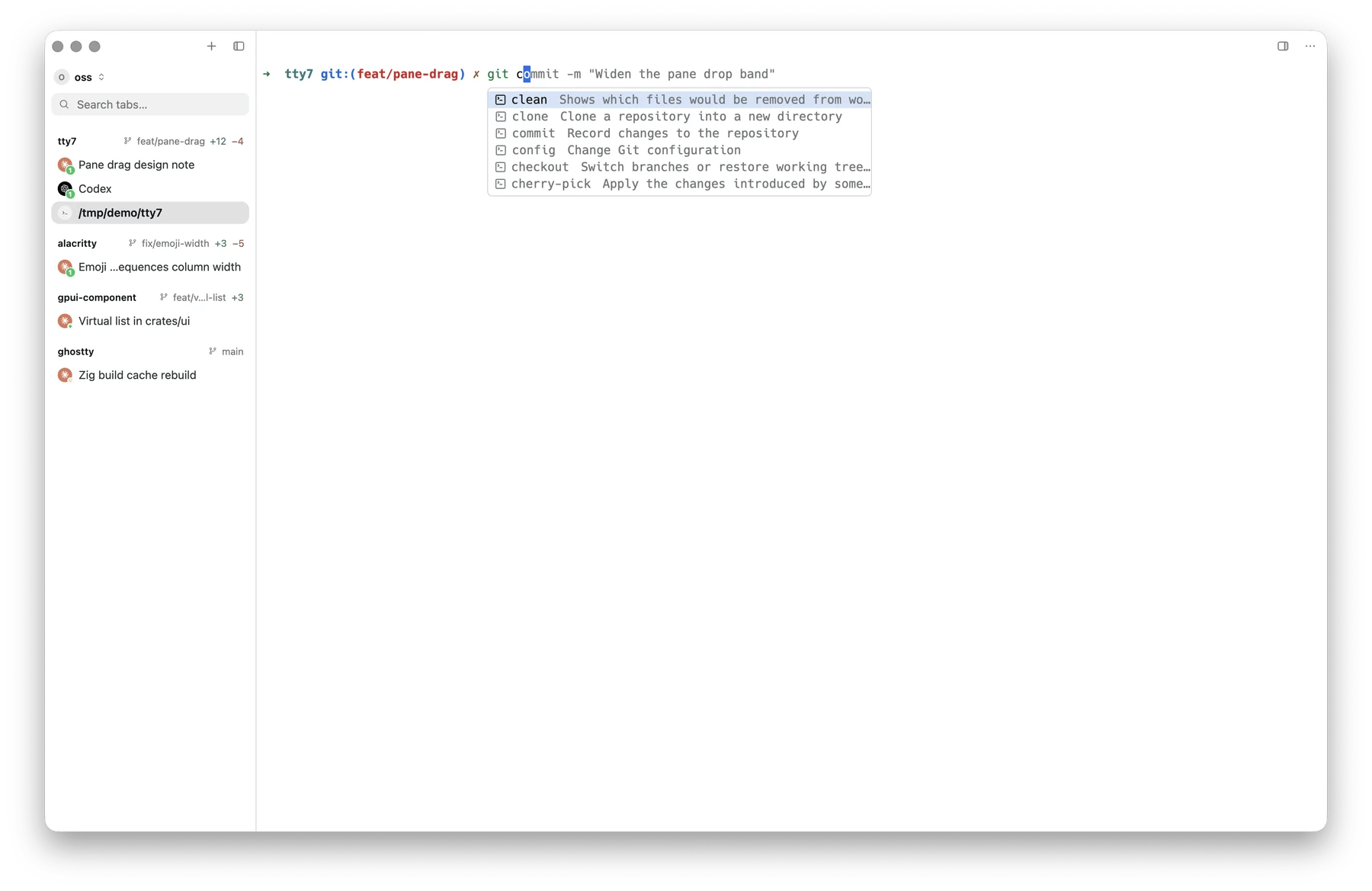
Completion on git ch, each subcommand with its description
tab_completion in config.json).
Syntax highlighting
The line you are typing is coloured as you type it: the command, its flags, its arguments, paths, quoted strings, operators, comments. It is a fast tokenizer, not a shell parser — it never changes what gets run.Line editing
The prompt behaves like a text field, because it is one:- Click to place the caret anywhere in the line
- Select with the mouse, drag to extend
- Word motion and word delete
- Undo
Typing with an IME
Pinyin, Kana, Hangul and the rest work in a pane the way they do in a text field: the composition is drawn in place at the cursor and only the committed text reaches the program. Two rules decide who gets a keystroke:- A plain printable key goes to the IME. A key held with ⌃, ⌘, fn, or ⌥ does not — those are chords, not characters.
- A program that asks for every key gets every key. When something turns on the kitty keyboard protocol’s report-all-keys mode, the IME steps aside so the program sees raw input.
On macOS with Option (⌥) acts as Meta turned on, ⌥ chords
bypass the IME entirely, so ⌥ B reaches your shell as meta-b
instead of being eaten as a dead key.
Multi-line commands
A command that wraps, or one you deliberately break across lines, edits in place. The grid shifts to keep the caret visible instead of scrolling the whole screen away. When the prompt itself takes up most of the row — a deep working directory, a busy theme — the line you type starts on the row below it instead, with the full width of the pane. That happens once the prompt leaves fewer than a third of the columns (never fewer than 20); an ordinary prompt keeps the input beside it. To keep the prompt short instead, trim it in the shell:%2~ in a zsh
PROMPT, fish’s prompt_pwd, or starship’s truncation_length.
The newline key is rebindable as
InsertNewline under Settings →
Keybindings.
Which shells
The prompt features arrive through tty7’s shell integration, which is injected automatically — nothing to add to your rc file — for zsh, bash, fish, PowerShell, and WSL. Other shells (nushell, elvish, xonsh, and the rest) run perfectly well in a pane; they simply do not get the prompt layer. The integration is also what reports the working directory, the exit code of each command, and where prompts begin — which is what the sidebar’s branch readout, the “command finished” notification, andtty7 procs are built on.
How shell integration works →
Turning it off
Each prompt feature is a switch, and turning one off hands its key straight back to the shell:Giving the whole prompt back to the shell
Turning off Settings → Terminal → Prompt & command history → tty7 prompt editor (prompt_editor: false) hands over not one key but the line itself. Every
keystroke at the prompt — printable characters, arrows, IME commits, paste — goes
straight to the PTY, and your shell’s own line editor does the editing: zsh’s
ZLE, bash’s readline, fish’s reader. A widget you bound yourself runs exactly as
it does outside tty7:
tty7 procs. The setting moves the line editor, not the
integration.
It applies to open panes immediately, so there is nothing to restart, and a line
you had half-typed is handed to the shell rather than dropped.